
How to Test a Chat App: Test Cases and Two-Device Automation
How to test a chat app: a full test case checklist, offline and reconnect cases, push for new messages, and automated two-device flows on iOS and Android.
- Written by
- Gautam Agarwal
- Read time
- 11 min read
- Published

Quick answer: to test a chat app, run each messaging journey with two users on two devices at the same time: one sends, the other receives, and the test checks delivery, order, read state and notifications on both screens, including offline, reconnect and retry cases. A chat test on one phone only proves the send button works. Chat bugs live in what the second phone sees.
A conversation needs two people. Testing chat on a single device is like rehearsing a phone call alone: you can check that your voice works, yet you learn little about whether anyone heard you, whether they heard you twice, or whether the call dropped halfway.
Key Takeaways
- Most chat bugs appear on the receiving side, so every core test needs a sender and a receiver.
- Test the uncertain moments: a send interrupted by a lost connection, a device that reconnects after missing messages, and a notification opened while the app was closed.
- Give each test run its own pair of accounts, so parallel runs keep their conversations apart.
- Cross platform chats, iOS to Android, need one side driven through your backend or a second flow.
- BugRadar runs one flow across two phones: one agent sees both screens, acts on Device 1 or Device 2, and records results per device.
What can break in a chat app?
| Stage | What can break |
|---|---|
| Accounts and contacts | A user fails to find the other, or a blocked user still reaches them |
| Sending | The message fails silently, or sends twice after a retry |
| Delivery and sync | Messages arrive late, out of order or only after a restart |
| Read receipts and typing | Status shows "read" too early, or a typing indicator gets stuck |
| Notifications | The banner stays away, or the tap opens the wrong chat |
| Offline and reconnect | Missed messages load twice, out of order or partly |
| Media | Images upload on one side and stay blank on the other |
| Same account on two devices | A message read on the phone stays unread on the tablet |
Ways to test a chat app
| Method | What it proves | What it skips |
|---|---|---|
| Two phones by hand | Everything, once | Repeating it on every build |
| A backend script plays one user | Fast, the receiving UI on one device | The sender's UI |
| Two code driven sessions in one test | Both UIs, in code | Setup: each session needs its own driver ports and device |
| One flow across two devices (BugRadar) | Both UIs, written as one journey | Mixing iOS and Android in one run |
| Load testing | Server behavior with thousands of users | The UI on any device |
This guide to native mobile app testing covers where code based suites fit. For most teams the useful mix is two device flows for core journeys, backend driven tests for edge cases, and a separate load test before big launches.
The chat app test case checklist
| Test case | Devices | What to verify |
|---|---|---|
| Send a text message | 2 | It appears on the receiver in real time, once |
| Reply | 2 | Both sides show both messages in the same order |
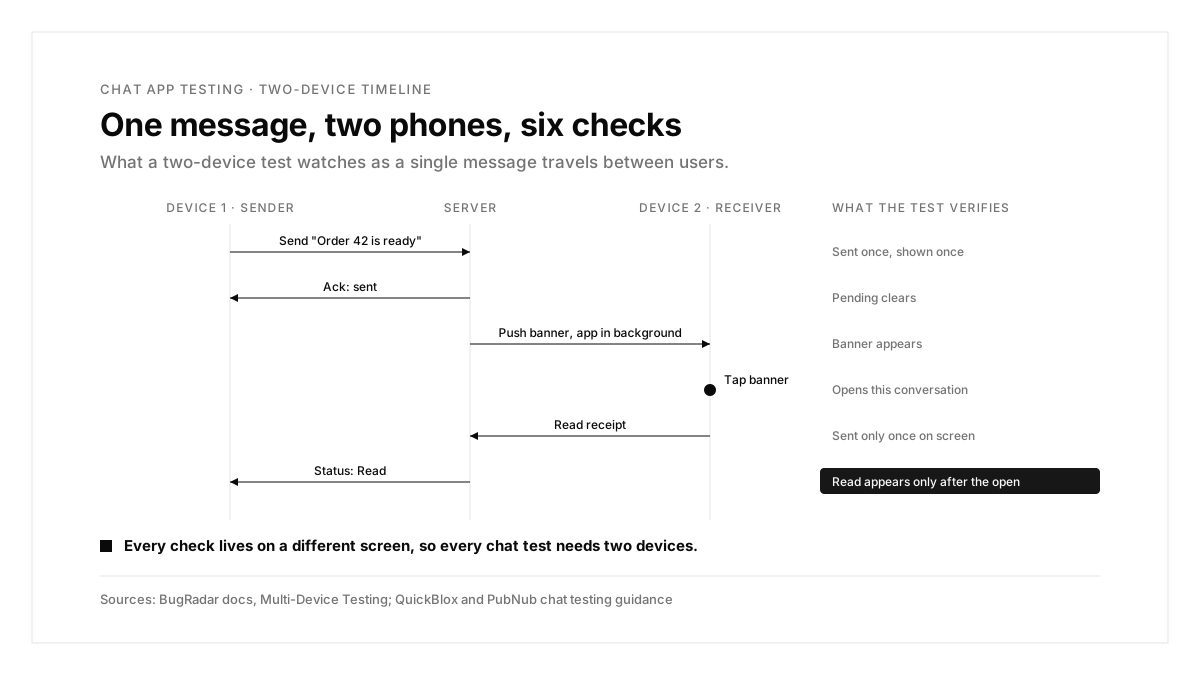
| Read receipt | 2 | "Read" appears only after the receiver opens the chat |
| Typing indicator | 2 | It appears while typing and clears when the sender stops or leaves |
| Edit and delete | 2 | Changes reach the receiver |
| Image or file | 2 | The receiver can open the full file |
| Group message | 2 or more | Every member receives it, the sender sees it once |
| Receiver in the background | 2 | A push banner appears and opens this conversation |
| Receiver with the app closed | 2 | The tap launches straight into the conversation |
| Sender goes offline mid send | 1 or 2 | The app shows a pending state and sends once on reconnect |
| Receiver offline, then back | 2 | Missed messages load once, in order, with the right unread count |
| Wi-Fi to mobile data switch | 1 | The connection recovers and every message arrives |
| Blocked user | 2 | Messages from them stop arriving |
| Long text, emoji and right to left text | 2 | Messages render fully on both sides |
| Chat with thousands of messages | 1 | The chat opens fast and scrolls smoothly |
| Same account on phone and tablet | 2 | Read state and history stay in sync |
Every row marked 2 runs as one BugRadar two-device flow. The PubNub test case guide for chat apps adds operational cases worth borrowing, such as server outages and simultaneous users. The MirrorFly chat test scenarios add negative cases for registration and long calls.
How to automate two-device chat tests
Step 1: Create a two-device flow
With BugRadar: in the flow editor, open Advanced options and set Number of devices to 2. Then refer to each phone by name in the instructions:
On Device 1, sign in as ${env:CHAT_USER_A}.
On Device 2, sign in as ${env:CHAT_USER_B}.
On Device 1, open the chat with User B and send "Order 42 is ready".
On Device 2, verify that "Order 42 is ready" appears in the chat with User A.
On Device 2, reply "Thanks".
On Device 1, verify that "Thanks" appears below "Order 42 is ready".
One agent sees both screens and takes one action at a time on Device 1 or Device 2.
Step 2: Pick the devices
With BugRadar: choose a model and OS for each device when you start the run. Both devices use the same app build and platform, yet they can differ in model and OS version, so an older Android on Device 1 can chat with a newer one on Device 2. Both must be virtual, or both physical.
The same ordered device choice works from the Runs API, MCP run tools, automations and the GitHub Action, so two-device flows run on every pull request like any other flow.
Step 3: Read the results per device
With BugRadar: the run viewer shows both screens and marks which device took each action. Logs, performance data, network data and recordings are separated by device, and API results include a device_index for every device specific action.
Step 4: Keep repeat runs fast
With BugRadar: run caching works for two-device runs too. The first passing run records the steps, and later runs reuse a step only when both screens match the recording; when either screen differs, the live agent takes over for that step.
When you add a two-device flow to a suite, every flow and the suite's Auth Instructions must use the same device count, so keep two-device journeys in their own suite.
Testing chats between iOS and Android
A two-device flow uses one platform, which covers most chat logic. For cross platform cases, drive one side through your backend:
- run the receiving app on Device 1 and Device 2 as usual
- send the "other platform" message through your API with a runtime hook
curl --fail-with-body -X POST "${env:CHAT_API_URL}/messages" \
-H "Authorization: Bearer ${env:CHAT_API_KEY}" \
-d '{"from":"${env:CHAT_USER_C}","to":"${env:CHAT_USER_A}","text":"Hello from Android"}'
With BugRadar: runtime hooks run synchronously, so the flow continues only after your API accepts the message, and the next step can check that it appears on screen. Then repeat the journey in a second flow on the other platform.
Testing message notifications
New message notifications are the most used push in any chat app. Test three states: receiver in the background, receiver with the app closed, and receiver inside a different chat.
With BugRadar: in a two-device flow, press Home on Device 2 before Device 1 sends, then wait for the banner on Device 2 and tap it.
Keep test conversations apart
Chat tests write to shared state, so parallel runs collide fast. Give each run or worker its own pair of accounts, and create fresh users during the run when your backend allows it.
With BugRadar: store each pair as environment variables, and create users with email codes through leased inboxes, as this guide to OTP testing shows.
Chat app testing examples
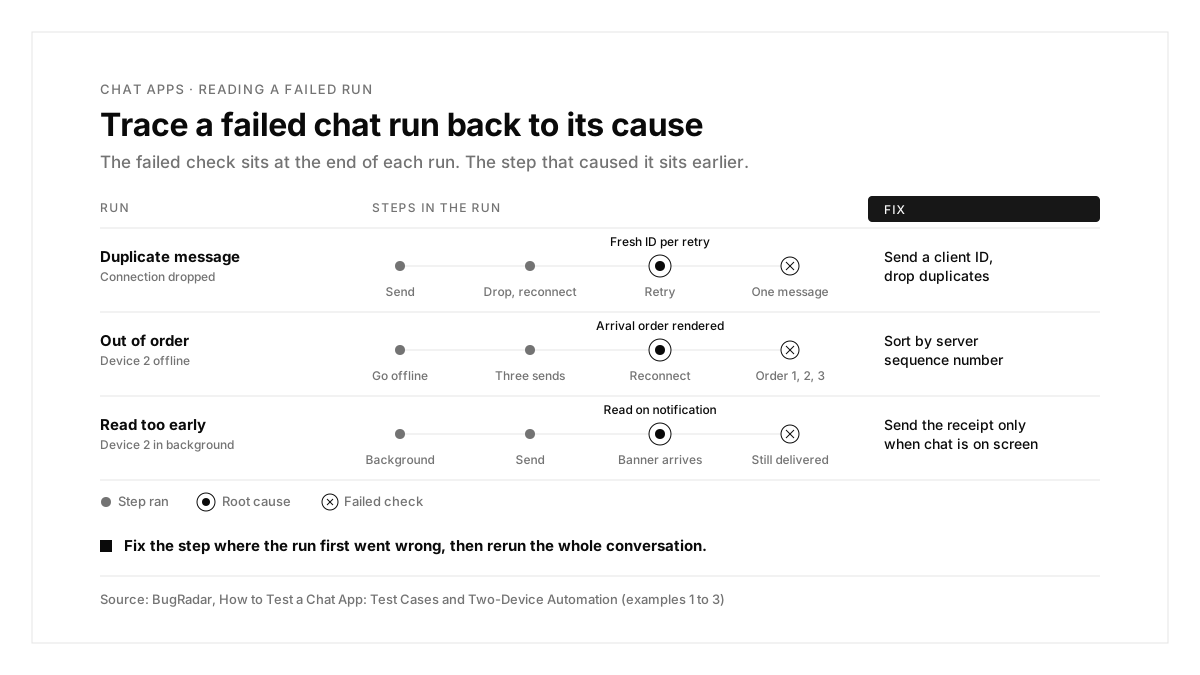
Each example starts from a failing run and traces it to a cause and a fix.
Example 1: A message sends twice after a dropped connection
| Step | Expected | What the run showed |
|---|---|---|
| Device 1 sends "On my way" | Message pending | Message pending |
| Connection drops, then returns | One retry | Two retries |
| Device 2 opens the chat | One message | "On my way" twice |
Cause: the client gave each retry a fresh ID, so the server stored both attempts.
Fix: attach a client generated message ID to every send and have the server drop duplicates.
With BugRadar: network data is separated by device, so the two identical send requests from Device 1 sit beside the step that triggered them.
Example 2: Missed messages arrive out of order
| Step | Expected | What the run showed |
|---|---|---|
| Device 2 goes offline | Offline | Offline |
| Device 1 sends three messages | Queued for Device 2 | Queued |
| Device 2 reconnects | Messages 1, 2, 3 | Messages 2, 1, 3 |
Cause: the client rendered messages in arrival order instead of server sequence order.
Fix: sort by the server's sequence number, and keep a reconnect journey in the suite.
With BugRadar: Device 2's recording shows the exact order the messages rendered in, next to Device 1's recording of the order they were sent.
Example 3: "Read" shows before the receiver opens the chat
| Step | Expected | What the run showed |
|---|---|---|
| Device 2 is in the background | Delivered | Delivered |
| Device 1 sends a message | Delivered | Delivered |
| The push banner appears on Device 2 | Still "Delivered" on Device 1 | "Read" on Device 1 |
Cause: the app marked messages as read when the notification arrived.
Fix: send the read receipt only when the conversation is on screen.
With BugRadar: the run viewer marks which device took each action, so the moment "Read" appeared on Device 1 lines up with the banner on Device 2.
Example 4: The notification opens the chat list
| Step | Expected | What the run showed |
|---|---|---|
| Close the app on Device 2 | Closed | Closed |
| Device 1 sends a message | Banner on Device 2 | Banner on Device 2 |
| Tap the banner | The conversation with User A | The chat list |
Cause: the conversation route was registered after the launch notification arrived.
Fix: read the launch notification at startup and route once navigation is ready.
Common chat testing problems and fixes
| Problem | What to check |
|---|---|
| Parallel runs see each other's messages | Each run uses its own pair of accounts |
| A suite rejects a two-device flow | Every flow and the Auth Instructions in the suite use two devices |
| Cross platform chat bugs slip through | A runtime hook sends from the other platform's user |
| Device 2 misses the push | Notification permission on Device 2 and the push setup |
| Tests flake on message timing | Wait for the message text itself, with a bounded wait |
Beyond two devices
With BugRadar: a flow can use up to two devices today. For group chats with more members, drive the extra members through runtime hooks, and keep the two-device flow for the sender and one receiver.
The chat app testing process, summarized
| Step | What you do | Output |
|---|---|---|
| 1. List | Write the test cases from the checklist | A chat test plan |
| 2. Accounts | Create account pairs for each run | Isolated conversations |
| 3. Two devices | Write sender and receiver journeys as two-device flows | Real time coverage |
| 4. Edge cases | Add offline, reconnect, retry and push flows | Recovery coverage |
| 5. Cross platform | Send from the other platform through a hook | iOS to Android coverage |
| 6. Automate | Run the suite on every pull request | Results per device |
Conclusion
Testing a chat app means testing the conversation, which always has two sides. Cover sending and receiving on two devices, then rehearse the uncertain moments: dropped connections, reconnects, retries and notifications opened from a closed app.
A good first step this week: create a two-device flow where Device 1 sends a message and Device 2 replies, then add a second flow that sends while Device 2 sits in the background. For a broader view of tools, see this ranking of mobile app testing tools, and for where emulators fit, this guide on emulators vs real devices.
FAQs
How do you test a chat app?
Run sender and receiver journeys on two devices, then test offline, reconnect and notification cases.
Can one automated test control two phones?
Yes. BugRadar runs one flow across two phones, with one agent acting on each device.
How do you test chat between iOS and Android?
Run one platform's devices in the flow and send from the other platform through your API.
What are the most important chat test cases?
Real time delivery, order, read receipts, retries after a lost connection, and notification taps.
How do you keep parallel chat tests apart?
Give every run its own pair of accounts, stored as environment variables.
Can group chats be tested with two devices?
Yes. Drive extra members through runtime hooks while two devices cover the main conversation.