
How to Test a Lovable App: E2E Testing for Vibe Coded Web Apps
How to test a Lovable app: where to run tests, Playwright vs BugRadar, Git sync and CI setup, and worked failure examples for sign up, checkout and AI features.
- Written by
- Gautam Agarwal
- Read time
- 13 min read
- Published

Quick answer: to test a Lovable app, run full user journeys such as sign up, the core action and payment against your preview or published URL in a real browser, after every change you make with a prompt. That catches what a quick click through misses: a journey that broke in a part of the app outside your request.
Lovable writes code at the speed of conversation. A prompt about the header can still reach a shared component that checkout uses, so the safe habit is simple: every prompt is a release, and every release gets the same journeys.
Key Takeaways
- Treat each prompt as a code change and rerun your vital journeys after it, beyond the feature you asked for.
- Test the preview or published URL: Lovable's docs note that in apps created from May 13, 2026, connector and AI calls fail when the app runs locally.
- Git sync commits every Lovable change to your repository, so CI can test each commit or pull request.
- Playwright tests the URL in code; BugRadar runs written flows in Chrome, Firefox, Edge or Chromium.
- The preview and the published app share one backend and database, so use clearly labelled test accounts and clean up test data.
- Lovable's own browser testing checks the preview while you build; a release still needs tests on the published URL.
- Start with 3 to 5 journeys: sign up, login, the core action and payment, plus a two account check for private data.
What is E2E testing for a Lovable app?
E2E testing for a Lovable app opens the running site in a real browser and walks through a journey the way a customer would. The spine has three steps:
- Publish. Get the change onto a preview or published URL.
- Drive. Click, type and navigate like a user.
- Assert. Confirm the expected page, text or state appears.
The same approach works for apps built with Bolt or v0, because each one ends as a web URL in a browser.
Where should you test a Lovable app?
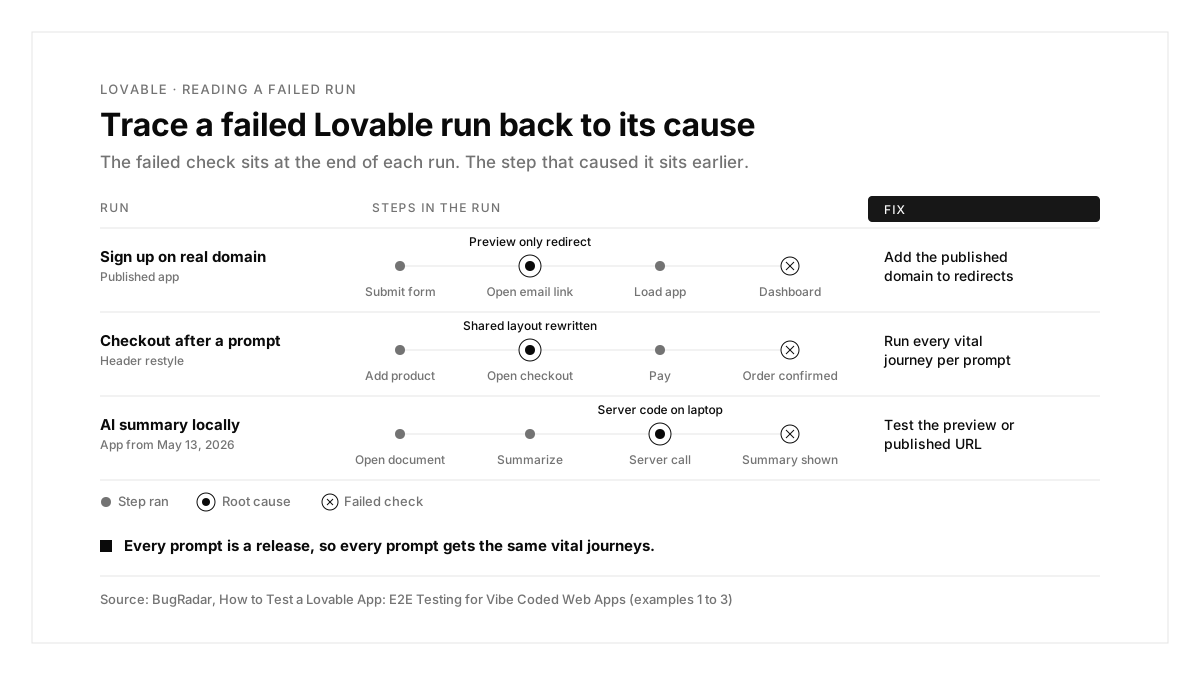
| Where | What runs | Best use |
|---|---|---|
| Local clone, older React and Vite app | Your UI, with server calls on your Lovable backend | Debugging in an IDE |
| Local clone, app created from May 13, 2026 | Your UI and server code on your machine | UI checks only |
| Editor preview | The full app on Lovable's preview | Checking a change right after a prompt |
| Published app | The full app on your real domain | E2E tests and release checks |
The Lovable Git sync docs explain the local gap: in newer apps built on TanStack Start, server code runs on your machine, so connector and AI calls fail locally and belong in the preview or the published app.
With BugRadar: flows run against any URL, including production, staging, preview and local servers, so the same flow covers the preview today and the published site tomorrow.
The preview and the published app share one database
The Lovable preview docs describe the preview as a private staging space that always runs your latest work, while visitors see a published snapshot that changes only when you publish. They add an important detail: the preview and the published app share the same backend and data. Test sign ups, orders and messages created in the preview land in the database your real users read.
Three habits keep that safe:
- use dedicated test accounts with an obvious prefix, such as test+ email addresses
- clean up test records after each run, or turn on test and live environment separation where your project supports it
- run destructive journeys, such as deleting an account, only against test data
Why E2E testing matters for vibe coded apps
Prompts reach beyond their target. An edit to one screen can rewrite a shared component that three journeys depend on.
Auth and email carry hidden setup. Sign up flows depend on redirect settings, email delivery and domains that differ between preview and production.
Speed hides regressions. When you ship ten changes a day, nobody clicks through checkout ten times a day.
Lovable's built in browser testing
Lovable can test your app itself. Ask in the project chat with phrases like "test this" or "verify it works", and its browser testing opens the app in a real browser in a virtual environment, clicks buttons, fills forms and returns screenshots. According to the Lovable browser testing docs:
- it tests exactly the version of the app you are viewing in the preview
- it runs as the app user signed in to the preview, and can sign in itself on Lovable's built in backend
- it can check mobile, tablet and desktop sizes
- with test and live environment separation, it runs against the test environment preview
- Lovable recommends building first and testing in a follow up prompt, since stopping a stuck test can lose that step's work
That makes it a great quick check while you build. It leaves three gaps that a release process needs to cover: the published URL, repeated runs on a schedule or on every change, and more than one browser.
Ways to test a Lovable app
| Method | Strength | Gap |
|---|---|---|
| Lovable browser testing | Fast checks inside the editor | Runs on the preview, one prompt at a time |
| Manual click through on your own phone | Real touch, real Safari or Chrome | Repeating it after every prompt |
| Playwright | Tests as code in your synced repository | You write and maintain locators |
| BugRadar | Written flows on the published URL, on every change and on a schedule | Native mobile wrappers need their own builds |
| Sessions with real users | Whether people understand the app | Regression checks |
Playwright vs BugRadar for Lovable apps
Playwright
BugRadar
| Playwright | BugRadar | |
|---|---|---|
| Test format | TypeScript or JavaScript code | A written flow, in YAML or the dashboard |
| Finding elements | Locators such as roles, labels and text | The agent reads the live page |
| Browsers | Chromium, Firefox and WebKit | Chrome, Firefox, Edge and Chromium |
| Email sign up | Your own inbox integration | Leased inboxes per run |
| Pull request feedback | Your CI job and reporter | A PR comment with videos plus a GitHub Check |
| Cost | Free, open source | Free tier, then paid plans |
Playwright suits teams who want tests as code beside the app. BugRadar suits builders who want journeys described in words that keep passing while Lovable reshapes the UI.
How to test a Lovable app, step by step
Step 1: Connect Git sync
Link your project to GitHub from Lovable. The Lovable GitHub integration creates a repository and starts two way sync: changes in Lovable land in GitHub, and pushes to the active branch flow back into Lovable. That repository is where your CI runs.
Step 2: Write your first test
A Playwright version of the sign up journey:
import { test, expect } from '@playwright/test';
test('sign up reaches the dashboard', async ({ page }) => {
await page.goto('https://your-app.lovable.app');
await page.getByRole('button', { name: 'Sign up' }).click();
await page.getByLabel('Email').fill('test@example.com');
await page.getByLabel('Password').fill('secret123');
await page.getByRole('button', { name: 'Create account' }).click();
await expect(page.getByText('Dashboard')).toBeVisible();
});
The same journey as an BugRadar flow, with a fresh inbox for the confirmation email:
```yaml
# .BugRadar/signup.flow.yaml
name: Sign up
instructions: |
Sign up with email $BugRadar_EMAIL_ADDRESS and a new password.
Confirm the account with the code from the inbox.
Verify the dashboard loads.
```
With BugRadar: attach the built in Lease email address hook and each run gets its own inbox, so parallel runs read only their own codes. This guide to OTP testing covers SMS codes too.
Step 3: Run tests on every change
```yaml
- uses: BugRadar/BugRadar-ci@main
with:
api-key: ${{ secrets.BugRadar_KEY }}
platform: web
app-id: my-web-app
flow-ids: "uuid-1,uuid-2"
```
With BugRadar: Lovable can open pull requests in your synced repository, and the BugRadar GitHub bot reads each PR diff, selects or writes the relevant flows, runs them and posts a comment with videos plus a GitHub Check.
Step 4: Check more than one browser
With BugRadar: pick the browser per run. Chrome is the default, and Firefox uses a different rendering and JavaScript engine, so it catches bugs that stay hidden in Chromium family browsers. The BugRadar web testing docs list every option.
The Lovable pre launch checklist
| Check | How to run it | What it catches |
|---|---|---|
| Sign up and login on the published URL | One flow per auth method | Domain and redirect settings |
| Two accounts, one record | Sign in as user A, then try to open user B's data | Missing access rules in the database |
| Signed out visitor | Open private pages while signed out | Pages that skip the auth check |
| Forms that save | Submit, reload, confirm the record exists | A success message over a failed write |
| Real phone | Tap every main button and scroll sideways on every page | Touch only bugs and horizontal overflow |
| Payments in test mode | Pay, decline, go back mid flow, double click Pay | Duplicate charges and stuck states |
| Console and network | Watch for errors while journeys run | Failing requests behind a working looking UI |
| AI features | Run them on the published URL | Server calls that only work in Lovable's environment |
With BugRadar: each row except the real phone check runs as a flow, and every run records the network requests the app made, so a failing request shows up beside the step that triggered it.
Lovable app testing examples
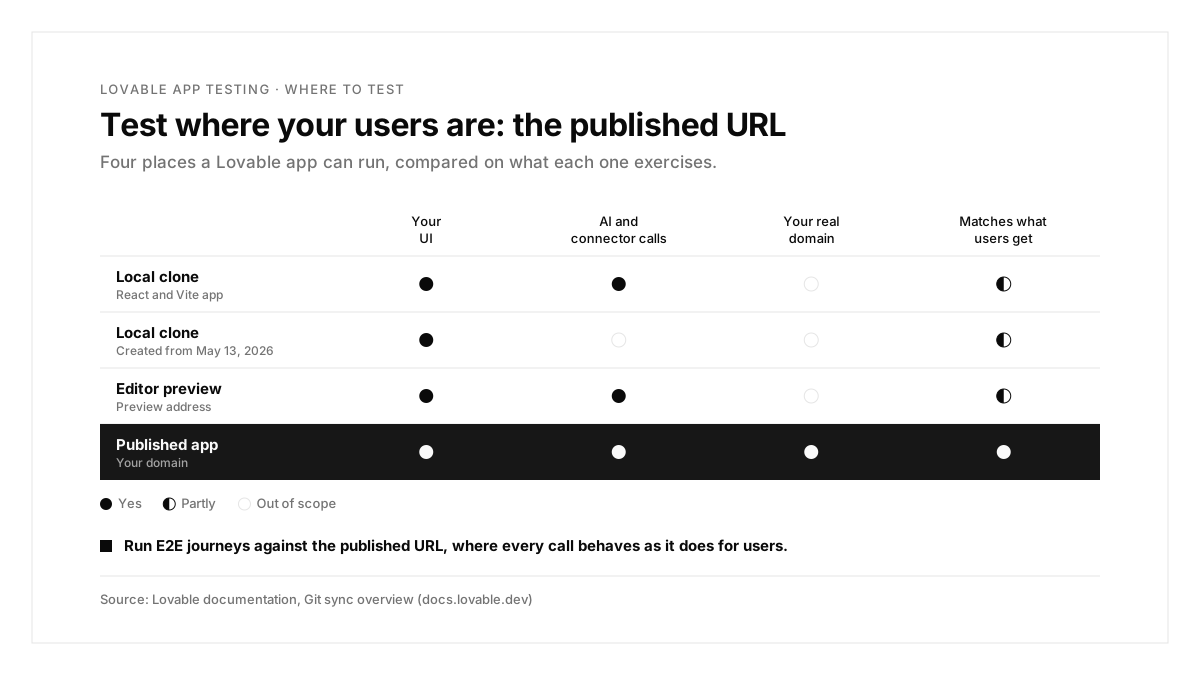
Each example starts from a failing run and traces it to a cause and a fix.
Example 1: Sign up works in the preview and fails on the real domain
Scenario: sign up passes in the editor preview. On the published domain, new users land on an error page after confirming their email.
| Step | Expected | What the published run showed |
|---|---|---|
| Submit the sign up form | Confirmation email sent | Confirmation email sent |
| Open the confirmation link | Back in the app, signed in | Redirect error |
| Load the dashboard | Dashboard | Sign in page |
Cause: the auth redirect settings allowed only the preview address.
Fix: add the published domain to the allowed redirect URLs, then run sign up against the published site.
With BugRadar: schedule the sign up flow daily against the published URL with BugRadar automations, and a leased inbox receives each confirmation email, so domain and email drift surfaces within a day.
Example 2: A header prompt breaks checkout
Scenario: a prompt restyles the navigation bar. That afternoon, a customer reports an empty cart at checkout.
| Step | Expected | What the run showed |
|---|---|---|
| Add a product to the cart | Cart shows 1 item | Cart shows 1 item |
| Open checkout | Cart total and Pay button | Empty cart |
| Pay with the test card | Order confirmation | Checkout page |
Cause: the prompt rewrote a shared layout component, and the cart state reset on navigation.
Fix: run every vital journey after each prompt, beyond the screen you changed.
With BugRadar: the GitHub bot reads the full diff, so a change to a shared component triggers checkout flows as well as header flows. If you also ship a browser add on, the same approach applies to Chrome extension testing, and this ranking of mobile app testing tools covers native apps.
Example 3: The AI feature fails in the local test run
Scenario: an AI summary button works in Lovable. The team's local test run fails on it every time.
| Step | Expected | What the local run showed |
|---|---|---|
| Open a document | Document view | Document view |
| Click "Summarize" | Summary appears | Request error |
| Copy the summary | Copied | Button greyed out |
Cause: the app was created after May 13, 2026, so its server code ran on the laptop, where AI and connector calls fail.
Fix: point the test at the preview or published URL.
With BugRadar: cloud runs open the URL you give them in a hosted browser, so AI and connector calls reach Lovable's servers the way they do for real users.
Example 4: A second account can read the first account's notes
Scenario: a notes app passes every journey with one test user. A beta tester reports seeing someone else's notes.
| Step | Expected | What the two account run showed |
|---|---|---|
| User A creates a private note | Note saved | Note saved |
| User B opens the notes list | Only B's notes | A's note listed too |
| User B opens A's note by URL | Access denied | Note opens |
Cause: the notes table lacked a rule limiting rows to their owner, so every signed in user could read every note.
Fix: add an ownership rule to the table, then keep a two account journey in the suite.
With BugRadar: store both accounts as environment variables, such as ${env:USER_A_EMAIL} and ${env:USER_B_EMAIL}, and write one flow that signs in as each in turn.
Common Lovable app testing problems and fixes
| Symptom | Likely cause | Fix |
|---|---|---|
| Works in preview, fails when published | Domain specific auth or redirect settings | Add the published domain, test the published URL |
| AI or connector calls fail locally | Server code running on your machine | Test the preview or published URL |
| A prompt breaks a separate journey | A shared component changed | Run every vital journey after each prompt |
| Email tests collide in parallel | One shared inbox | Give each run its own inbox |
| Layout breaks in one browser only | Engine differences | Run key flows in Chrome and Firefox |
| Test records show up for real users | Preview and published share one database | Use test accounts and clean up after runs |
| One user sees another's data | A table lacks an ownership rule | Add the rule and keep a two account flow |
The Lovable app testing process, summarized
| Step | What you do | Output |
|---|---|---|
| 1. Sync | Connect Git sync to GitHub | A repository CI can watch |
| 2. Write | Cover sign up, login, the core action and payment | Vital journey tests |
| 3. Target | Point tests at the preview or published URL | Results that match production |
| 4. Automate | Run on every commit or pull request | Results after each prompt |
| 5. Widen | Add a second browser | Cross browser coverage |
| 6. Diagnose | Trace each failure to its cause | A fix through your next prompt |
Conclusion
Testing a Lovable app means matching the pace of prompting with the same few journeys, run against the real URL after every change. Connect Git sync, describe your vital journeys once, and trace each failing run back to its cause before your next prompt.
A good first step this week: connect your project to GitHub, write sign up as one BugRadar flow, and run it against your published site in Chrome and Firefox.
FAQs
How do you test a Lovable app?
Run full user journeys against the preview or published URL after every prompt.
Can you test a Lovable app locally?
You can check the UI, though newer apps fail AI and connector calls locally.
Does Lovable sync code to GitHub?
Yes. Git sync keeps two way sync between Lovable and a repository you own.
Which tools test vibe coded web apps?
Playwright works as code, and BugRadar runs written flows against any URL.
How do you test email sign up in a Lovable app?
Use a fresh inbox per run, such as BugRadar's leased email addresses.
Does Lovable test my app automatically?
Lovable's browser testing checks the preview on request; published URL tests need a separate tool.