
How to Test In-App Purchases on iOS and Android
How to test in-app purchases: StoreKit Testing, Apple sandbox, Google Play license testers, RevenueCat Test Store, a scenario checklist and automated purchase flows.
- Written by
- Gautam Agarwal
- Read time
- 13 min read
- Published

Quick answer: to test in-app purchases, run each purchase scenario, from first purchase to decline, cancel, restore, renewal and expiry, in a test environment where money stays fake: StoreKit Testing or the Apple sandbox on iOS, license testers on Google Play, or RevenueCat Test Store for automated runs. Then confirm two things every time: the app unlocked or locked the right content, and the store or billing backend recorded the matching transaction.
A purchase test is a dress rehearsal with stage money. The cast, script and set match opening night, but the cash register prints "TEST". Rehearse every scene, including the ones where the card bounces, because those are the scenes customers remember.
Key Takeaways
- Test the full scenario set: success, decline, cancel, pending payment, interrupted purchase, restore, renewal, grace period, expiry and refund.
- StoreKit Testing in Xcode runs locally with a StoreKit configuration file, before products even exist in App Store Connect.
- The Apple sandbox needs a Sandbox Apple Account, a development signed build and Developer Mode, and its device settings change renewal rates and clear purchase history.
- Google Play license testers get test cards that always approve, always decline or settle slowly, plus subscriptions that renew every 5 minutes for a 1 month plan.
- Google refunds a license tester purchase after 3 minutes if the app skips acknowledgement, which makes acknowledgement bugs easy to catch in testing.
- BugRadar automates purchase flows on virtual devices with RevenueCat Test Store, choosing a successful, failed or cancelled outcome and checking the entitlement.
What is in-app purchase testing?
In-app purchase testing verifies the money path of your app. It covers six stages:
| Stage | What can break |
|---|---|
| 1. Products load | The paywall shows empty plans or the wrong prices |
| 2. Purchase sheet | The store sheet errors out, or the wrong product appears |
| 3. Payment outcome | Declines and cancellations leave the app stuck |
| 4. Entitlement | Paid users stay locked out, or free users get premium |
| 5. Confirmation | The app forgets to finish or acknowledge the transaction |
| 6. Lifecycle | Restores, renewals, grace periods and expiry behave wrongly |
Bugs in stages 4 to 6 hurt most, because they reach people who already paid.
Five ways to test in-app purchases
| Stage | What can break |
|---|---|
| 1. Products load | The paywall shows empty plans or the wrong prices |
| 2. Purchase sheet | The store sheet errors out, or the wrong product appears |
| 3. Payment outcome | Declines and cancellations leave the app stuck |
| 4. Entitlement | Paid users stay locked out, or free users get premium |
| 5. Confirmation | The app forgets to finish or acknowledge the transaction |
| 6. Lifecycle | Restores, renewals, grace periods and expiry behave wrongly |
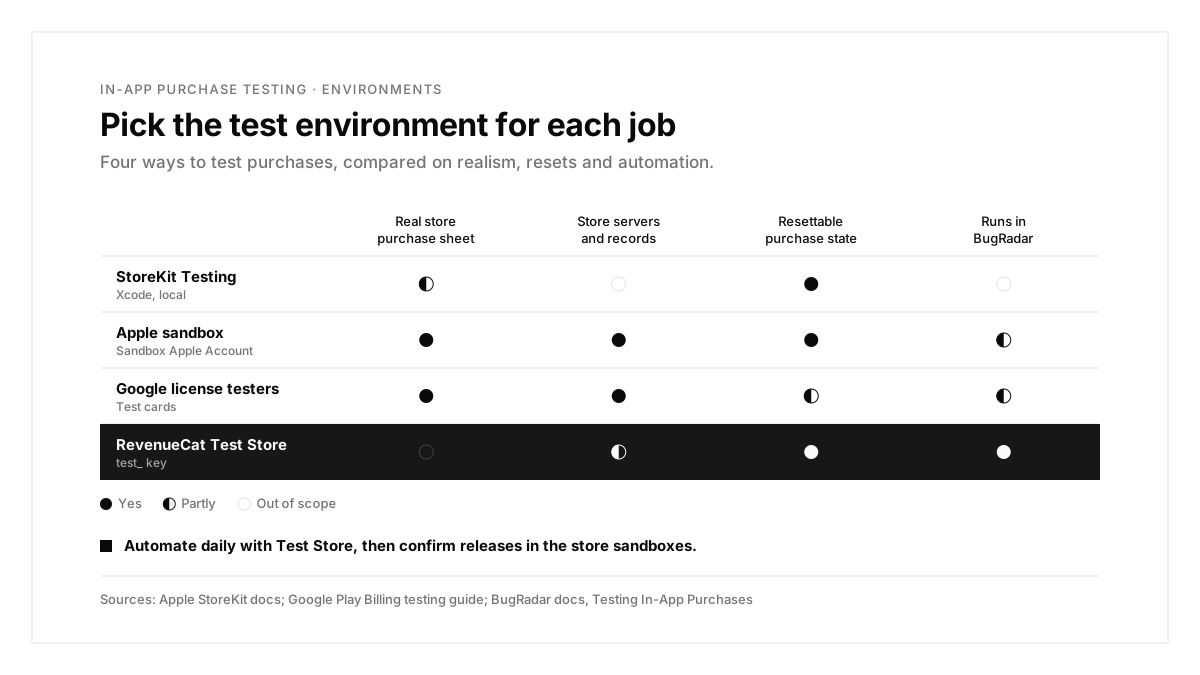
Apple describes StoreKit Testing in Xcode as a local test environment that skips App Store servers, useful before products exist in App Store Connect. The sandbox uses real product information from App Store Connect, and both environments are covered in the Apple sandbox testing guide.
The purchase scenario checklist
| Scenario | What to verify | Where to test it |
|---|---|---|
| First purchase | Content unlocks and the transaction is recorded | Every environment |
| Payment declined | An error appears and content stays locked | Google "Test card, always declines"; the failed outcome in BugRadar with RevenueCat Test Store |
| Purchase cancelled | The paywall returns and the app stays usable | Every environment |
| Pending payment | Access waits until payment settles | Google slow test cards |
| Interrupted purchase | The app completes the purchase after the interruption | StoreKit Testing and the Apple sandbox |
| Restore on a fresh install | A returning buyer regains access | Apple sandbox, license testers |
| Entitlement after reopen | Premium survives a restart | Every environment |
| Renewal | Access continues at each renewal | Accelerated renewals on both stores |
| Grace period and account hold | Access follows your policy while payment fails | Google Play Billing Lab |
| Free trial and intro offers | Eligible users see the offer, ineligible users see the full price | Apple sandbox, Google Play Billing Lab |
| Refund or chargeback | Access ends | Google "approves then charges back" test card |
| Price change | Users see and accept or decline the new price | Google license testers |
| Other storefronts | Local prices and currency | Apple sandbox regions, Google license testers |
Apple sandbox regions, Google license testers
How to test in-app purchases on iOS
Option 1: StoreKit Testing in Xcode
Create a StoreKit configuration file, enable it in your scheme, and run the app on a simulator or device. Xcode then lets you:
- speed up subscriptions with Editor > Subscription Renewal Rate, down to a monthly renewal every 30 seconds
- test interruptions with Editor > Enable Interrupted Purchases
- delete past transactions in Debug > StoreKit > Manage Transactions to retest a first purchase or an offer
Apple's guide to testing in-app purchases in Xcode lists the scenarios worth covering, from interrupted purchases to renewals and restores. StoreKit Testing stays local to Xcode and skips App Store servers, so keep final server side validation for the sandbox.
Option 2: The Apple sandbox
- Confirm the Account Holder has signed the Paid Applications Agreement.
- Create a Sandbox Apple Account in App Store Connect, using a fresh email that has yet to be used for an Apple Account.
- Install a development signed build on a device with Developer Mode enabled.
- Make a first purchase and sign in with the Sandbox Apple Account when prompted; the account then appears under Settings > Developer.
From the sandbox settings on the device you can change the renewal rate, clear purchase history and enable interrupted purchases. Each Sandbox Apple Account belongs to one of 175 storefronts, and you can switch its country to test regional pricing. A Sandbox Apple Account works only with apps from the developer account that created it.
Your backend sees sandbox activity too: App Store Server Notifications mark the sandbox in their environment field, and the App Store Server API offers sandbox endpoints.
How to test in-app purchases on Android
Set up license testers
Add the tester's Google account as a license tester in Play Console. License testers see test payment methods in the real purchase flow, with a notice across the purchase dialog, and Google skips tax on test purchases.
| Test payment method | Use it for |
|---|---|
| Test card, always approves | Successful purchases and renewals |
| Test card, always declines | Failed payments, grace period and account hold |
| Slow test card, approves after a few minutes | Pending purchases that settle |
| Slow test card, declines after a few minutes | Pending purchases that fail |
| Test card, approves then charges back | User initiated chargebacks |
The Google Play Billing testing guide lists the full set.
Know the Android test timings
| Item | Test duration |
|---|---|
| 1 week or 1 month subscription | Renews every 5 minutes |
| 3 month subscription | 10 minutes |
| 1 year subscription | 30 minutes |
| Free trial | 3 minutes |
| Grace period | 5 minutes |
| Account hold | 10 minutes |
| Unacknowledged license tester purchase | Refunded after 3 minutes |
The last row matters most. If your app grants access and skips acknowledgement, Google refunds the test purchase three minutes later, and you receive an email about it.
Choose how the build reaches the device
Google Play Billing is normally blocked for apps that have yet to be signed and uploaded to Google Play. License testers can still sideload a build with the same package name as the app in Play Console, including debug signed builds. Joining an internal or closed test track is a separate setting: track membership alone leaves purchases at full price, so the purchasing account must also be a license tester.
Play Billing Lab, an Android app from Google, adds controls for repeated trial offers, faster subscription state changes and price change tests.
How to automate in-app purchase tests
Store sandboxes need signed in test accounts and real purchase sheets, which makes them slow to automate. RevenueCat Test Store replaces the native purchase sheet with a test modal, so an automated run can choose the outcome.
With BugRadar: configure RevenueCat Test Store, initialize the SDK with the Test Store key (it starts with test_), and upload a standalone test build: a zipped .app for an iOS Simulator or an .apk for Android. BugRadar then selects a successful, failed or cancelled outcome and verifies how your app responds. Each outcome gets its own flow:
Open the app and navigate to the subscription paywall.
Choose the monthly plan.
In the RevenueCat Test Store purchase dialog, choose the failed purchase option.
Verify that the app shows an error and remains usable.
Verify that the premium screen is still locked.
Complete a successful purchase for the monthly plan.
Close and reopen the app.
Verify that the premium screen remains unlocked.
With BugRadar: after a run, open the customer in RevenueCat with sandbox data enabled and confirm the App User ID, the entitlement for successful purchases, and the absence of one after failed or cancelled purchases. Test purchases update CustomerInfo, grant entitlements and appear as sandbox data.
The build has to run on its own: it must bundle the app code and assets and run independently of Metro, hot reload or any other process on your computer. Expo teams can follow the build steps in this guide to Expo E2E testing, and bare React Native teams can use this guide to React Native E2E testing.
Native purchases on private devices
With BugRadar: native StoreKit and Google Play Billing flows, including the real store sheet and sandbox transactions, run on private devices under an enterprise contract. BugRadar preserves your app's original signing, coordinates sandbox sign in, and agrees with your team on how to reset account state between runs, since reinstalling the app alone leaves an account's trial eligibility as it was.
In-app purchase testing examples
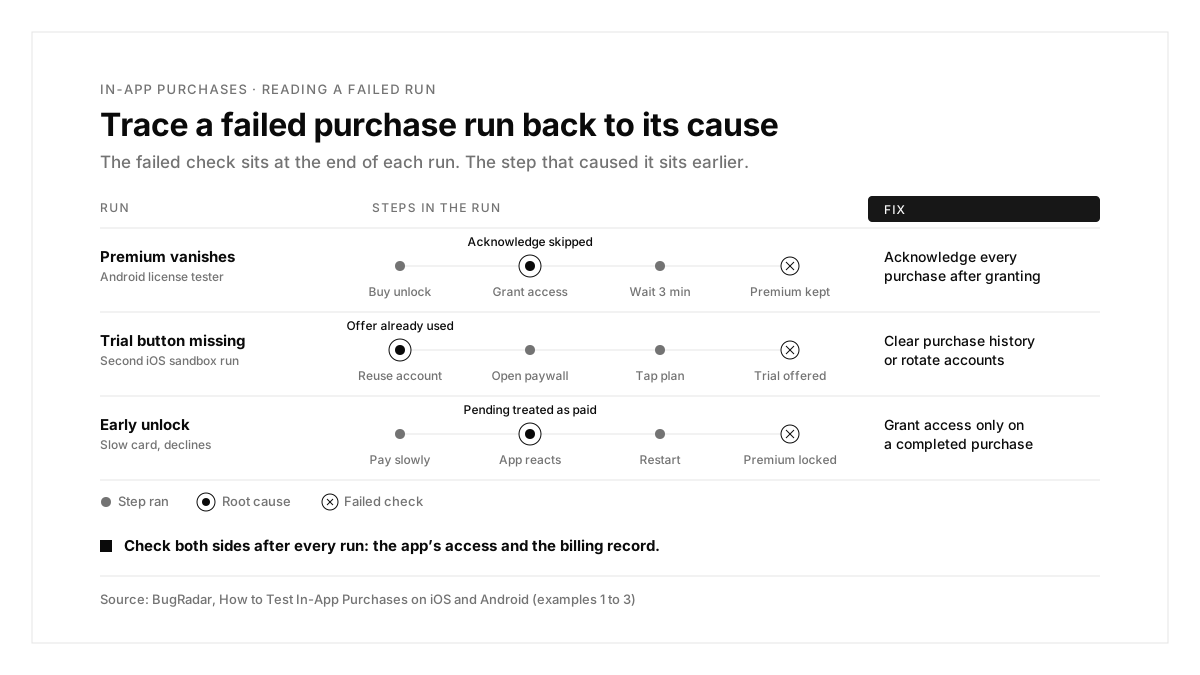
Each example starts from a failing run and traces it to a cause and a fix.
Example 1: Premium vanishes three minutes after purchase
| Step | Expected | What the Android run showed |
|---|---|---|
| Buy the lifetime unlock | Premium unlocked | Premium unlocked |
| Use the app for a few minutes | Premium stays | Premium stays |
| Reopen after 3 minutes | Premium stays | Paywall, plus a refund email |
Cause: the app granted access and skipped acknowledgePurchase, so Google refunded the license tester purchase.
Fix: acknowledge every purchase after granting the entitlement, and alert when acknowledgement fails.
Example 2: The free trial button vanishes on the second run
| Step | Expected | What the iOS run showed |
|---|---|---|
| Open the paywall | "Start free trial" | "Subscribe" at full price |
| Tap the plan | Trial terms | Full price terms |
| Complete purchase | Trial starts | Paid subscription starts |
Cause: the Sandbox Apple Account had already used the introductory offer in the first run.
Fix: clear the account's purchase history in the sandbox settings, or rotate test accounts, before each first purchase test.
With BugRadar: the Test Store version of this bug shows up as a run that starts with an existing entitlement; use a fresh test App User ID or reset the customer's Test Store state in RevenueCat before each first purchase flow.
Example 3: Access unlocks before the payment clears
| Step | Expected | What the Android run showed |
|---|---|---|
| Pay with the slow card that declines | Purchase pending | Premium unlocked |
| Restart the app | Premium locked | Premium unlocked |
| Wait for the decline | Premium locked | Premium unlocked |
Cause: the app treated a pending purchase as complete.
Fix: grant access only when the purchase state reaches purchased, and listen for the update when a pending payment settles.
Example 4: The release candidate exits at launch
| Step | Expected | What the run showed |
|---|---|---|
| Launch the release build | Home screen | App exits |
| Configure the purchases SDK | Store key loaded | Test Store key found |
| Open the paywall | Plans listed | Unreachable |
Cause: the production configuration picked up the RevenueCat test_ key.
Fix: select the Test Store key only in dedicated test builds through build configuration or environment variables, and swap in the platform key before release.
With BugRadar: this is the exact symptom the BugRadar troubleshooting table lists for a test_ key in a production build, so keep a separate test build for every BugRadar purchase run.
Common in-app purchase testing problems and fixes
The first four rows come from the BugRadar troubleshooting guide for RevenueCat Test Store; the last two come from the Apple and Google setup rules above.
| Problem | What to check |
|---|---|
| The paywall shows empty plans | Products attached to the offering or product list your app fetches |
| A native store sheet appears in a Test Store build | The build initializes RevenueCat with the Test Store key |
| Content unlocks with zero records in RevenueCat | Sandbox data enabled and the right App User ID |
| A test starts with an existing entitlement | A fresh App User ID, or reset Test Store state |
| Sandbox purchases fail on iOS | Paid Applications Agreement, development signing and a valid Sandbox Apple Account |
| Android purchases charge full price | The account is a license tester, beyond track membership |
Before you ship
Swap the test_ key for each platform's RevenueCat key, then run a final validation through the Apple and Google sandboxes, as RevenueCat recommends. Keep the automated Test Store flows for every pull request, and repeat the native sandbox pass before each release that touches the paywall.
The in-app purchase testing process, summarized
| Step | What you do | Output |
|---|---|---|
| 1. Configure | Set up products, offerings and test accounts | Test ready catalogs |
| 2. Local test | Use StoreKit Testing and test cards for fast iteration | Working purchase code |
| 3. Automate | Run RevenueCat Test Store flows on every build | Success, fail and cancel coverage |
| 4. Lifecycle | Use accelerated renewals for renewal, grace and expiry | Subscription state coverage |
| 5. Verify | Check entitlements and backend records after each run | Matching app and billing state |
| 6. Release | Swap keys and run a native sandbox pass | A paywall ready for production |
Conclusion
Testing in-app purchases means rehearsing every money scene, including the declines, pending payments and renewals that only show up after launch. Use StoreKit Testing and test cards for speed, the store sandboxes for realism, and automated Test Store flows to keep every build honest.
A good first step this week: set up RevenueCat Test Store in a dedicated test build, upload it to BugRadar, and run the success, failed, cancelled and reopen flows on iOS and Android. For how native apps are tested end to end, see this guide to native mobile app testing, and for where emulators fit, this guide on emulators vs real devices. For a wider view of the tools around these flows, see this ranking of mobile app testing tools, and for login steps that need email codes, this guide to OTP testing.
FAQs
How do you test in-app purchases with fake money?
Use StoreKit Testing, an Apple Sandbox Apple Account, Google license testers or RevenueCat Test Store.
Can you test in-app purchases on the iOS Simulator?
Yes, with StoreKit Testing in Xcode or RevenueCat Test Store.
How fast do test subscriptions renew on Google Play?
A 1 month test subscription renews about every 5 minutes; a 1 year plan every 30.
Why was my Android test purchase refunded?
Google refunds license tester purchases after 3 minutes when the app skips acknowledgement.
How do you reset a free trial for testing?
Clear the Sandbox Apple Account's purchase history, or use Play Billing Lab on Android.
Can BugRadar test native StoreKit and Play Billing?
Yes, on private devices under an enterprise contract; Test Store flows run on virtual devices.