
Push Notification Testing: How to Test Push on iOS and Android
How to test push notifications on iOS and Android: simulator and emulator setup, APNs sandbox rules, FCM test messages, app states, error codes and automated flows.
- Written by
- Gautam Agarwal
- Read time
- 12 min read
- Published

Quick answer: push notification testing checks the full journey of a notification, from the app's permission request and token registration, through your backend and APNs or FCM, to the banner on the device and the screen the user lands on after tapping it. A test that only fires a sample payload at a device checks the last step. Most push bugs live in the earlier ones.
Think of a push notification as a parcel. The app hands out its address (the device token), your backend writes the label, Apple or Google runs the delivery van, and the phone rings the doorbell. A parcel can go missing at any of those handoffs, so a good test follows it from the warehouse to the front door.
Key Takeaways
- Test the whole chain: permission, token registration, backend targeting, APNs or FCM delivery, display, tap and deep link.
- iOS Simulators receive real remote notifications: Apple added support in Xcode 14 for iOS 16 Simulators on macOS 13 Macs with Apple silicon or T2 processors, through the APNs sandbox.
- Simulator tokens work only with the APNs sandbox, and sending them to the production endpoint commonly returns BadDeviceToken.
- On Android, request POST_NOTIFICATIONS at runtime on Android 13 and later, and create the notification channel on Android 8 and later.
- Test background, foreground and cold start separately, since apps handle a tap differently in each state.
- BugRadar tests real APNs and FCM delivery on iOS Simulators and Android Emulators, then taps the notification and checks the destination screen.
What is push notification testing?
Push notification testing verifies that a notification reaches the right user, looks right, and takes them to the right place. It covers six stages:
| Stage | What can break |
|---|---|
| 1. Permission | The prompt stays hidden, or the app ignores a denial |
| 2. Registration | The token goes stale, or reaches the backend for the wrong user |
| 3. Targeting | The backend sends to an old token, a different user or the wrong environment |
| 4. Delivery | APNs or FCM rejects the request |
| 5. Display | The OS receives the message yet the shade stays empty, or shows the wrong text |
| 6. Tap and deep link | The tap opens the home screen instead of the order, chat or offer |
Sample payload tools check stages 5 and 6. Users experience all six.
Ways to test push notifications
| Method | What it proves | What it skips |
|---|---|---|
xcrun simctl push with a JSON payload on an iOS Simulator | How the notification looks and what a tap does | Permission, tokens, your backend and APNs |
adb shell cmd notification post on Android | How a notification renders | Your app's own code path, your backend and FCM |
| Firebase console test message to a pasted token | FCM delivery and display for one device | Your backend's targeting logic |
| Your backend sending to a simulator or emulator | The complete chain, end to end | Physical device quirks |
| Physical devices | Hardware and OEM behavior | Speed, since every device needs manual setup |
The fourth row is the one most teams skip, because older guides still say iOS Simulators only accept simulated pushes. That changed with Xcode 14: according to the Xcode 14 release notes, iOS 16 Simulators on macOS 13 Macs with Apple silicon or T2 processors receive remote notifications from the APNs sandbox. If you test Android on emulators too, this guide on emulators vs real devices covers where each fits. On iOS, code based UI tests handle the permission alert through XCUITest, as this explainer on what XCUITest is describes. Code based Android suites reach the notification shade through UiAutomator, as this guide to Android test automation explains.
With BugRadar: your backend or managed provider sends a real notification to an BugRadar iOS Simulator or Android Emulator, and the agent verifies delivery and the deep link. Your APNs key and Firebase service account credentials stay on the backend that sends the push, while BugRadar works from the device side.
Why push notifications are hard to test
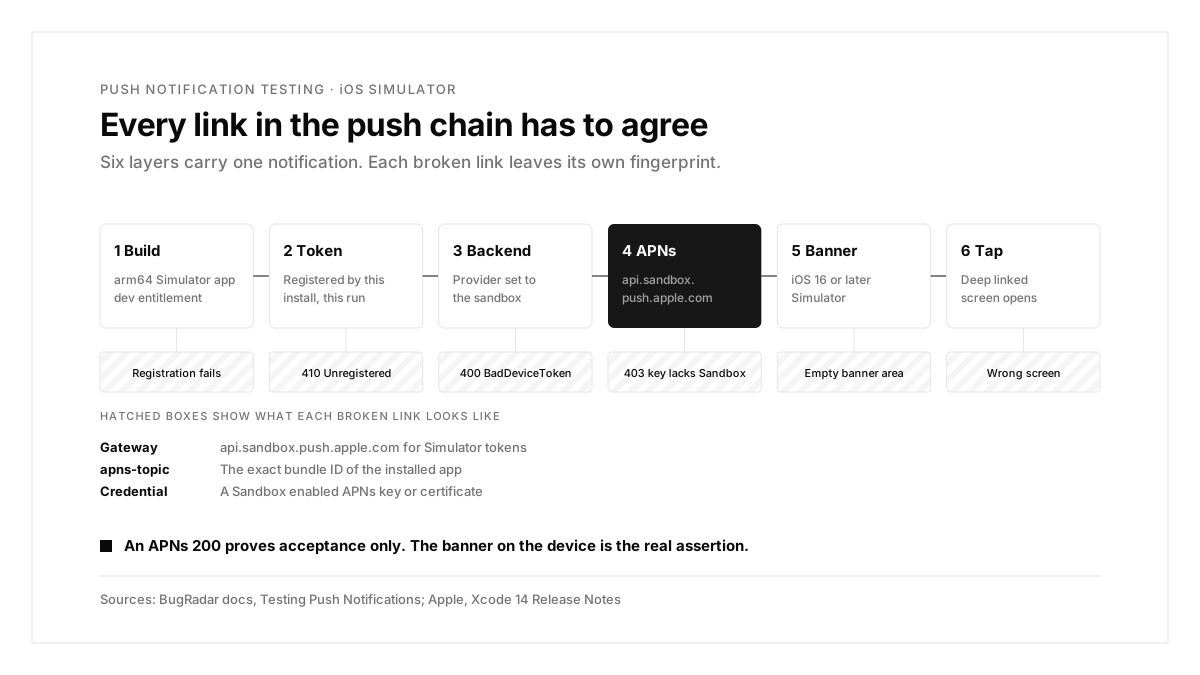
Five systems have to agree. The app build, the token, your backend, the push provider and the OS all hold part of the configuration.
Environments split in two on iOS. Development builds register sandbox tokens, store builds register production tokens, and each token works with one APNs endpoint only.
Tokens change. Reinstalling a build, clearing app data or resetting a device can issue a new token, so a token copied from yesterday's run fails today.
The OS has the final word. Android needs a channel and runtime permission before it displays anything, and both platforms can delay background work.
How to set up push notification testing on iOS
Step 1: Build a push capable Simulator app
Enable Push Notifications under Signing & Capabilities in Xcode. With development signing, Xcode adds aps-environment=development to the signed entitlements. Keep code signing on, because only a signed build can register with APNs.
With BugRadar: upload an arm64 iOS Simulator .app. BugRadar supplies an iOS 16 or later Simulator runtime, and your app's minimum deployment target can stay lower. Before zipping, the preflight script in the BugRadar docs checks three values: arm64 in the binary, aps-environment=development, and the bundle ID your backend uses as apns-topic.
Step 2: Send to the APNs sandbox
| Layer | Required value |
|---|---|
| APNs gateway | api.sandbox.push.apple.com |
| APNs credential | A Sandbox enabled key or certificate |
| apns-topic | The exact CFBundleIdentifier of the installed Simulator app |
| Token | Registered by this installation, during this run |
Each Simulator and host Mac combination receives its own token, and token length varies, so store tokens as opaque strings.
Step 3: Check your provider's environment setting
Managed providers hide the APNs hostname, so the environment setting decides everything:
Provider
Setting for Simulator builds
Firebase Cloud Messaging
A development APNs key or certificate in the Firebase console; Firebase Apple SDK 10.3.0 or later
Expo Push Service
Install expo-application, or pass development: true to getExpoPushTokenAsync
OneSignal
APNs development environment; set apns_env to development when using the API, which defaults to production
Customer.io
Send all push notifications to sandbox, ideally in a separate workspace
AWS SNS
A platform application of type APNS_SANDBOX
Expo teams also need the expo-notifications config plugin, or an aps-environment entitlement, in the EAS build; this guide to Expo E2E testing covers the build profile.
How to set up push notification testing on Android
Android uses one FCM endpoint for every environment. Send to the emulator's FCM registration token through the normal Firebase Admin SDK or FCM HTTP v1 API, and use a staging Firebase project to keep test messages apart from production. The build must:
- include Firebase Cloud Messaging and the right Firebase config, following the FCM Android setup guide
- request POST_NOTIFICATIONS at runtime on Android 13 or later
- create the notification channel the test uses, on Android 8 or later, as the Android notification channel guide explains
- upload the newest FCM token to your test backend
With BugRadar: the Android Emulator image includes Google APIs and Google Play services. If your app enforces Play Integrity or Firebase App Check, configure the provider's test or debug path for the BugRadar build.
How to automate a push notification test
Option 1: Trigger the push from the app
When an in app action schedules the notification, the flow follows the user:
Log in as ${env:PUSH_TEST_EMAIL}.
Accept notification permission if the app asks for it.
Enable the order ready reminder for the test order.
Press Home so the app is in the background.
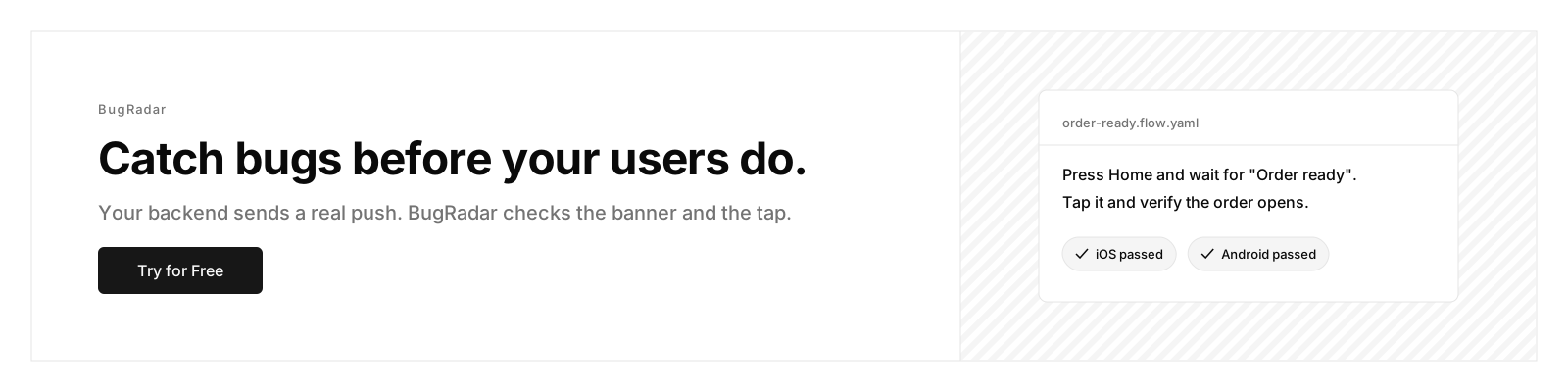
Wait up to 30 seconds for an "Order ready" notification.
Tap the notification.
Verify that the app opens the test order.
Option 2: Trigger the push with a runtime hook
When the app lacks a convenient trigger, an BugRadar runtime hook calls a narrow test endpoint on your backend:
curl --fail-with-body -X POST "${env:PUSH_TEST_URL}" \
-H "Authorization: Bearer ${env:PUSH_TEST_API_KEY}" \
-H "Content-Type: application/json" \
-d '{"user_id":"${env:PUSH_TEST_USER_ID}","template":"order-ready"}'
With BugRadar: reference the hook in the flow as ${hooks:Trigger Test Push}. Runtime hooks run synchronously, so the agent waits for your endpoint's response before it presses on. A successful response proves only that your backend accepted the request; the notification appearing on the device is the real assertion. For context on the feature itself, see the launch notes on push notification testing.
Make the test endpoint useful when it fails
Have the endpoint return a distinct error when the test user lacks a registration from the current run. For direct APNs, return the HTTP status, reason, apns-id, gateway and apns-topic, with the device token redacted. That turns a silent failure into a specific stage.
Test every app state
| Provider | Setting for Simulator builds |
|---|---|
| Firebase Cloud Messaging | A development APNs key or certificate in the Firebase console; Firebase Apple SDK 10.3.0 or later |
| Expo Push Service | Install expo-application, or pass development: true to getExpoPushTokenAsync |
| OneSignal | APNs development environment; set apns_env to development when using the API, which defaults to production |
| Customer.io | Send all push notifications to sandbox, ideally in a separate workspace |
| AWS SNS | A platform application of type APNS_SANDBOX |
With BugRadar: create one flow per state, since each state runs a different code path in your app.
Silent and background data pushes are a special case. The OS controls when background work runs, so use bounded waits, avoid sending in tight loops, and keep business critical background processing on physical devices too.
Push notification testing examples
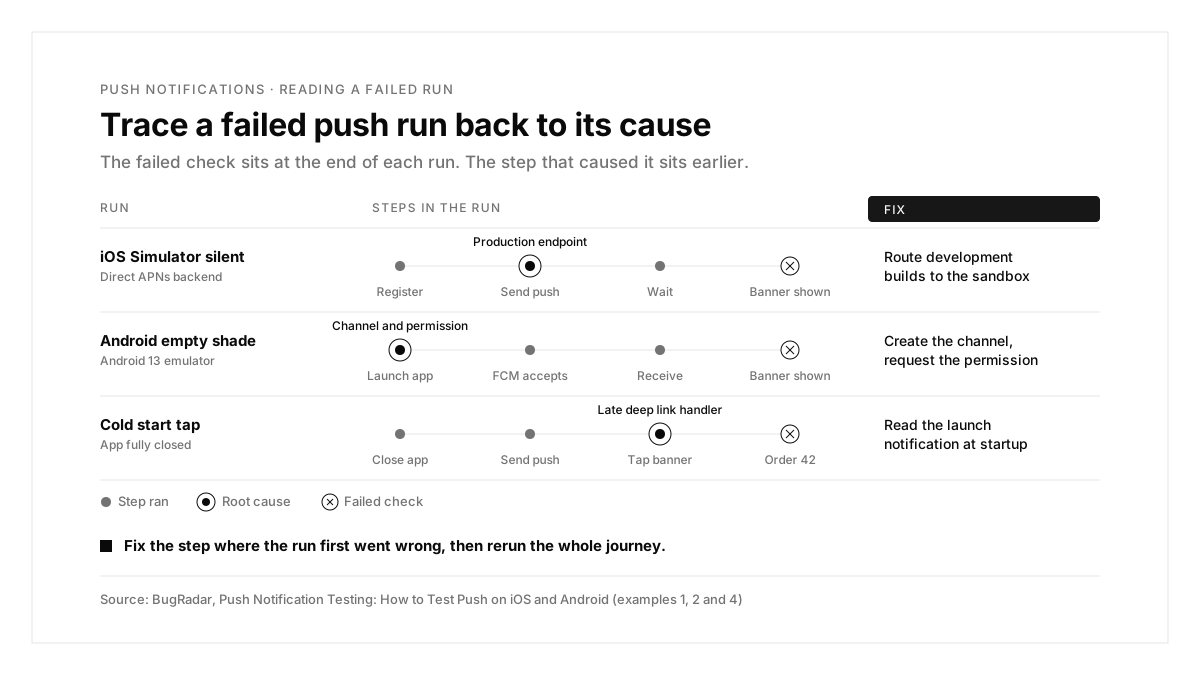
Each example starts from a failing run and traces it to a cause and a fix.
Example 1: The iOS Simulator stays silent
| Step | Expected | What the run showed |
|---|---|---|
| Register for notifications | Token stored for the test user | Token stored |
| Backend sends the push | APNs returns 200 | APNs returns 400 BadDeviceToken |
| Wait for the banner | "Order ready" appears | Nothing appears |
Cause: the backend sent the Simulator's sandbox token to api.push.apple.com, the production endpoint.
Fix: route development builds to api.sandbox.push.apple.com, and keep the retry logic from resending a BadDeviceToken to production.
Example 2: Android receives the message and the shade stays empty
| Step | Expected | What the run showed |
|---|---|---|
| FCM accepts the message | Message ID returned | Message ID returned |
| Device receives it | Notification shown | Nothing in the shade |
| Tap the notification | Order screen | Test times out |
Cause: the app targeted a channel ID it had yet to create, and on Android 13 the POST_NOTIFICATIONS request was missing from the first launch.
Fix: create the channel at startup, request the permission at runtime, and check whether the payload is a notification message or a data message your code must display itself.
Example 3: Parallel runs steal each other's notifications
| Step | Expected | What the run showed |
|---|---|---|
| Run A registers | Token linked to the test user | Token linked |
| Run B registers with the same user | Separate target | Run A's registration replaced |
| Backend sends Run A's push | Run A sees it | Run B sees it |
Cause: both runs shared one account, so the newest registration took the push.
Fix: give each run or worker its own account or targeting key.
With BugRadar: sequential tests can reuse one automation account; overlapping push tests need separate accounts, as the BugRadar docs recommend.
Example 4: The tap opens the home screen after a cold start
| Step | Expected | What the run showed |
|---|---|---|
| Close the app fully | App closed | App closed |
| Tap the notification | Order 42 opens | Home screen |
| Open the order manually | Order 42 | Order 42 |
Cause: the deep link handler registered after the launch notification had already arrived.
Fix: read the launch notification during startup, then route once navigation is ready.
APNs error codes and what they mean
| Response | Meaning | Next check |
|---|---|---|
| 200 | APNs accepted the request | The flow still has to observe the banner |
| 400 BadDeviceToken | Token invalid or from the other environment | Token from this install, sandbox endpoint |
400 BadTopic / DeviceTokenNotForTopic | Topic and token mismatch | Compare apns-topic with the app's bundle ID |
| 403 BadEnvironmentKeyIdInToken | Key lacks Sandbox access | Use a Sandbox enabled key |
403 InvalidProviderToken / ExpiredProviderToken | JWT problem | Signature, Key ID, Team ID, issue time, server clock |
| 410 Unregistered / ExpiredToken | Token retired | Wait for the app to register again |
On Android, an FCM UNREGISTERED error usually means the app was reinstalled or its data cleared; launch the app and upload the new token before sending again.
Common push notification testing problems and fixes
| Problem | What to check |
|---|---|
| The permission prompt stays hidden | Permission granted in an earlier session; start from a clean device state |
| The backend reports zero targets | The app finished updating its registration for this user during this run |
| The hook succeeds, the banner stays away | The APNs or FCM response; acceptance and delivery are separate stages |
| The iOS Simulator fails to register | Push capability, development entitlement, credentials and an iOS 16 or later runtime |
| Silent pushes arrive inconsistently | OS scheduling; reduce frequency and cover critical cases on physical devices |
Real devices and push
With BugRadar: push testing on physical iOS and Android devices uses private devices that preserve your app's original signing and notification entitlements, and it requires an enterprise contract. Virtual devices cover most push journeys on every plan.
The push notification testing process, summarized
| Step | What you do | Output |
|---|---|---|
| 1. Build | Enable push and the development entitlement | A push capable test build |
| 2. Register | Send a fresh token to your backend on every launch | A current target for the test user |
| 3. Route | Point development builds at the APNs sandbox | Accepted pushes |
| 4. Trigger | Fire the push from the app or a runtime hook | A real notification |
| 5. Verify | Check the banner, tap it and check the destination | An end to end result |
| 6. Repeat | Cover background, foreground, cold start and extensions | Every code path tested |
Conclusion
Push notification testing works when it follows the parcel the whole way: permission, token, backend, APNs or FCM, display and the deep link. Simulators and emulators now cover that full chain, as long as the build, token, endpoint and provider all agree on the environment.
A good first step this week: build an arm64 Simulator app with the development entitlement, run the BugRadar preflight, and write one background push flow that taps the notification and checks the destination.
FAQs
Can you test push notifications on the iOS Simulator?
Yes. Since Xcode 14, iOS 16 Simulators receive real pushes from the APNs sandbox.
Why does APNs return BadDeviceToken?
Usually a sandbox token went to the production endpoint, or the token came from another install.
How do you test push notifications on an Android emulator?
Request POST_NOTIFICATIONS, create the channel, then send to the emulator's FCM token.
Does BugRadar need my APNs key?
Your backend keeps the credentials and sends the push; BugRadar verifies delivery on the device.
Which app states should push tests cover?
Background, foreground, cold start, plus any notification service extension changes.
Can push tests run in parallel?
Yes, when each run uses its own account or targeting key.