
Expo E2E Testing: How to Test Your Expo App on iOS and Android
A practical guide to Expo E2E testing: which EAS build to test, simulator and APK profiles, Detox vs Appium vs BugRadar, worked failure examples and CI.
- Written by
- Gautam Agarwal
- Read time
- 13 min read
- Published

Quick answer: Expo E2E testing runs a standalone EAS build of your Expo app on a simulator, emulator or phone and drives it the way a user would, tapping, typing and checking each screen. It confirms that your JavaScript, native modules and app config work together in the build people install.
Testing in Expo Go is like test driving the showroom model. Your users drive the car that rolls out of EAS Build, with your own native modules, config plugins and keys. E2E tests belong in that car.
Key Takeaways
- Test a standalone build: a development build waits for a dev server, so CI and cloud devices need a preview or simulator build.
- An EAS profile with ios.simulator: true produces an iOS Simulator .app, and buildType: apk produces an installable Android .apk.
- Expo Go ships a fixed set of native libraries, so purchases, push and custom native code need your own build.
- Detox on Expo needs a config plugin, and for SDK 54 and later that plugin is community maintained.
- EAS Update can change JavaScript after a build passes, so rerun journeys on the update's channel before promoting it.
- BugRadar runs flows on EAS builds for iOS and Android, including builds uploaded straight from an EAS build hook.
What is Expo E2E testing?
Expo E2E testing checks a complete user journey inside a built Expo app. It follows the same spine as any mobile E2E test:
- Build. Create a standalone build with EAS Build.
- Drive. Launch it on a device and perform the user's actions.
- Assert. Confirm the expected screen, text or state appears.
The Expo part lives in step 1. Choosing the right build decides whether the test measures your real app or a stand in.
Where Expo apps break
| Layer | What can break | How a test catches it |
|---|---|---|
| Build profile | A development build waits for a dev server | Launch the uploaded build on a fresh device |
| Native config | A config plugin or app.json change alters permissions or entitlements | Run journeys after every prebuild |
| JavaScript bundle | An EAS Update ships code that needs native support the installed build lacks | Run journeys on the update's channel before promoting it |
| Permissions | A denied prompt leaves the app stuck | Cover both the allow and the deny answer |
| Deep links | A link opens the wrong route, or lands on a blank screen | Open each important URL from outside the app |
| Store and push integrations | Purchases and pushes behave differently from Expo Go | Test them in your own build |
Expo Go, development build or release build: which one should you test?
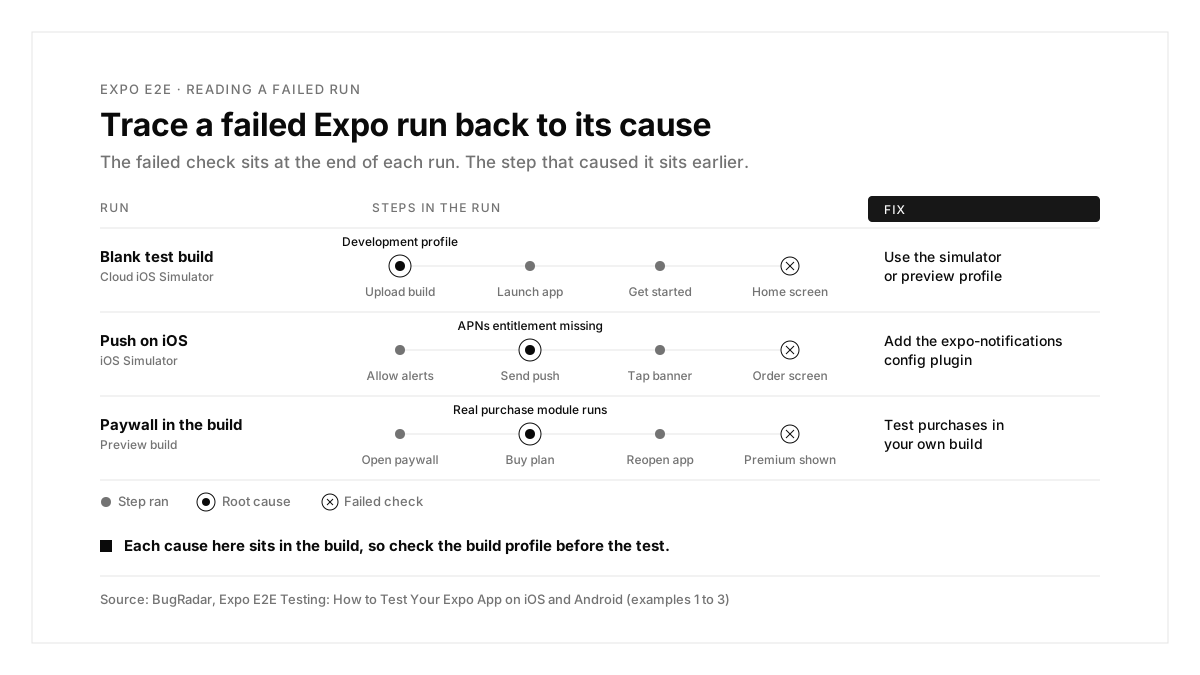
| Build | Where JavaScript comes from | Custom native code | Best use |
|---|---|---|---|
| Expo Go | Your dev server | Expo Go's built-in set | Quick UI checks |
| Development build | Your dev server | Any library you add | Daily development |
| Preview or simulator build | Bundled inside the app | Any library you add | E2E tests on simulators, emulators and CI |
| Store build | Bundled inside the app | Any library you add | Release to the App Store and Google Play |
The Expo development builds guide describes a development build as your own version of Expo Go, free to use any native library. That freedom is the reason to test your own build, and the dev server dependency is the reason to test a preview or simulator build rather than the development build itself.
With BugRadar: cloud runs need a standalone build, because a debug build loads JavaScript from Metro on your computer. For quick checks against a development build, BugRadar sandboxes can forward Metro's port with BugRadar sandbox forward 8081.
Why E2E testing matters for Expo apps
Prebuild rewrites your native project. Config plugins and app.json changes regenerate the ios and android folders, so a one line config change can alter permissions, entitlements or build settings.
Expo Go hides native gaps. A screen that works in Expo Go can behave differently once your own native modules load in a real build.
One codebase ships two apps. Permission prompts, keyboards and back navigation differ between iOS and Android.
Ways to run Expo E2E tests
| Where tests run | How you get the build | Best for |
|---|---|---|
| Your machine | npx expo run:ios --configuration Release or npx expo run:android --variant release | Debugging a failing journey |
| Expo Workflows | An E2E build profile plus a workflow file in .eas/workflows, triggered on every pull request | Teams that keep CI inside EAS |
| GitHub Actions | EAS Build, then the BugRadar GitHub Action | Teams that already use GitHub CI |
| EAS build hook | Upload to BugRadar after each successful build | Saving CI minutes |
The Expo E2E workflows guide shows the Expo Workflows route: an E2E build profile in eas.json, a YAML workflow that builds an .apk or .app, and a test job that runs on each pull request. Every route ends the same way, with a release style build on a simulator or emulator.
Detox vs Appium vs BugRadar for Expo
| Detox | Appium | BugRadar | |
|---|---|---|---|
| Expo setup | A config plugin plus npx expo prebuild | Install your EAS build on a device | Upload the EAS build |
| Test format | JavaScript with Jest | Client code in several languages | A written flow, in YAML or the dashboard |
| Finding elements | testID, text or label matchers | Locators such as accessibility IDs | The agent reads the live screen |
| Pull request feedback | Your CI job and reporter | Your CI job and reporter | A PR comment with videos plus a GitHub Check |
| Cost | Free, open source | Free, open source | Free tier, then paid plans |
One Expo specific detail: the Expo team removed the Detox plugin from its official config plugins repository, and a community maintained Detox config plugin now supports SDK 54 and later. Check that compatibility before an SDK upgrade.
How to set up Expo E2E testing
Step 1: Add EAS build profiles for testing
{
"build": {
"BugRadar-simulator": {
"distribution": "internal",
"ios": { "simulator": true }
},
"preview": {
"distribution": "internal",
"channel": "preview",
"android": { "buildType": "apk" }
}
}
}
eas build --platform ios --profile BugRadar-simulator
eas build --platform android --profile preview
With BugRadar: download the iOS build, compress the .app to a .zip and upload it; upload the Android .apk as it is. For real iPhones, an internal distribution profile that leaves out the simulator key produces an .ipa.
Step 2: Write your first test
```yaml
# .BugRadar/onboarding.flow.yaml
name: Onboarding
instructions: |
Open the app as a new user and complete onboarding.
Sign up with a new email address.
Verify the home screen loads.
```
With BugRadar: a flow describes what the user does and what they should see. The only required keys are name and instructions, the file lives in your repo under .BugRadar/, and BugRadar flows validate checks it before you push.
Step 3: Run tests locally
Install the simulator build on a booted iOS Simulator (this guide to Android emulator setup covers the Android side), then run:
BugRadar up --platform ios
BugRadar run onboarding --local
With BugRadar: the CLI detects every booted device, so an iOS Simulator and an Android Emulator run the same flow in one pass. Coding agents use the same path: tell Claude Code or Cursor "Build the feature. Test it locally using BugRadar and fix anything that fails."
Step 4: Run tests on every build
Expo teams have two options. The BugRadar GitHub Action can wait for an EAS build, download it and upload it. An EAS build hook can upload straight to BugRadar after each successful build, which saves CI minutes because the GitHub runner stays free. The BugRadar CI/CD docs include a complete EAS workflow.
With BugRadar: once builds arrive, the BugRadar GitHub bot reads each PR diff, selects or writes the relevant flows, runs them and posts a comment with videos plus a GitHub Check.
The Expo journey checklist
Expo's own testing advice covers happy paths, such as a successful sign up, and sad paths, such as invalid payment details. A complete suite covers both:
| Journey | Happy path | Sad path |
|---|---|---|
| Onboarding | A new user reaches the home screen | A skipped step or a back press mid flow |
| Sign up with an email code | The code signs the user in | A wrong or expired code |
| Permissions | Access granted, feature works | Access denied, the app explains and recovers |
| Push notifications | The banner opens the right screen | The user denied notifications |
| Purchases | Premium unlocks | Declined or cancelled payment |
| Deep links | The URL opens the right route | An outdated or malformed URL |
For the two hardest rows, see the guides on push notification testing and in-app purchase testing.
Testing EAS Update changes
EAS Update ships JavaScript to builds that are already installed, so a passing build can still break after an update lands. Two rules keep updates safe:
- Native changes need a new build. An over the air update can change JavaScript, yet it leaves the signed app as it was, so entitlement, permission and native module changes all require a fresh EAS build.
- Test the channel before promoting it. The preview profile in Step 1 sets channel: preview, so an update published to that channel reaches your test build first.
With BugRadar: rerun your suite against the preview build after each update to the preview channel, then promote the update once the flows pass.
Testing deep links
Expo Router gives every screen a URL, which makes deep links easy to break during a refactor. Test each URL that arrives from outside the app: links in emails, push payloads and marketing campaigns.
With BugRadar: coding agents can open a link inside an BugRadar sandbox with BugRadar sandbox open myapp://path, then check the screen with BugRadar sandbox look.
Testing SDK upgrades
An SDK upgrade regenerates the native project, so treat it like a new app. Rebuild both platforms, rerun every journey, and check any third party plugin's compatibility table first, as the Detox config plugin example shows.
Expo E2E testing examples
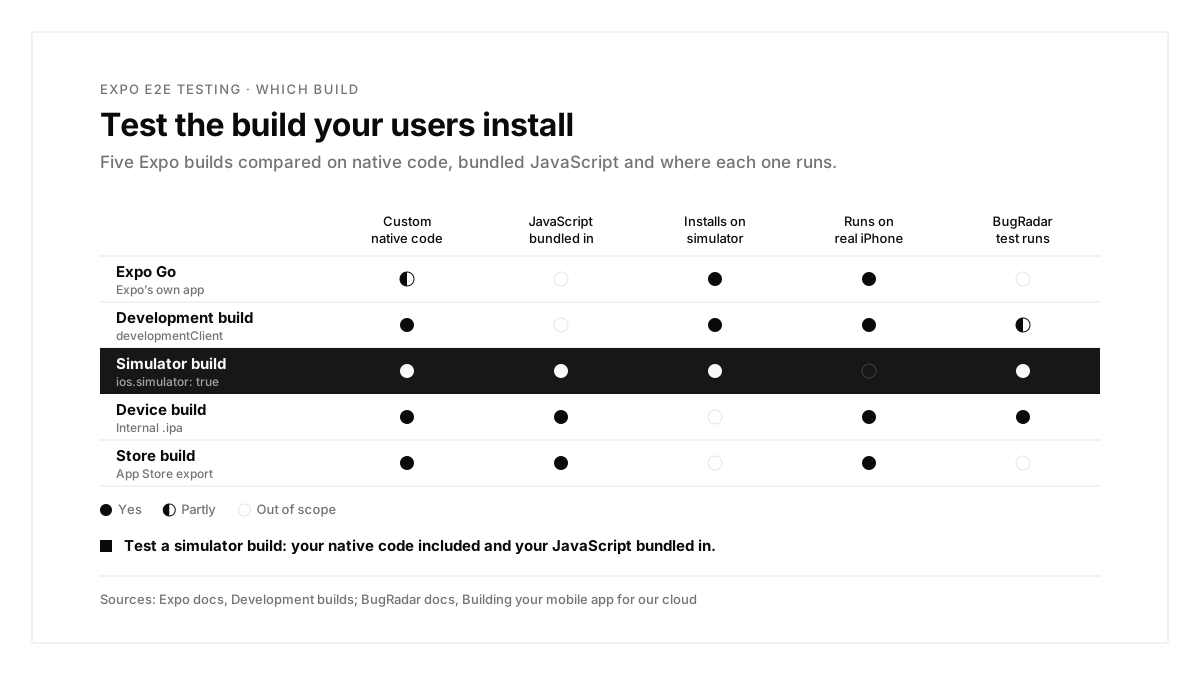
Each example starts from a failing run and traces it to a cause and a fix.
Example 1: The test build opens to a blank screen
Scenario: the team uploads its latest EAS build to a cloud simulator, and every flow fails on the first screen.
| Step | Expected | What the run showed |
|---|---|---|
| Launch the app | Welcome screen | A launcher asking for a development server |
| Tap "Get started" | Sign up screen | Launcher screen |
| Complete sign up | Home screen | Launcher screen |
Cause: the uploaded build came from the development profile, which includes expo-dev-client and waits for a dev server.
Fix: build from a profile that leaves out developmentClient, such as BugRadar-simulator or preview, so JavaScript ships inside the app.
Example 2: Push arrives on Android and stays silent on iOS
Scenario: an order update push reaches the Android Emulator, and the same flow fails on the iOS Simulator.
| Step | Expected | What the iOS run showed |
|---|---|---|
| Allow notifications | Permission granted | Permission granted |
| Backend sends the push | Banner appears | No banner |
| Tap the banner | Order screen | Home screen |
Cause: the simulator profile produced an app that lacks the APNs entitlement.
Fix: add the expo-notifications config plugin, which adds aps-environment to the iOS app during prebuild, then rebuild.
With BugRadar: BugRadar tests real APNs and FCM delivery on its virtual devices, from the permission prompt to the tap. See this walkthrough of push notification testing.
Example 3: The paywall works in Expo Go and fails in the build
Scenario: the subscription screen looks right in Expo Go. In the preview build, the purchase fails.
| Step | Expected | What the build run showed |
|---|---|---|
| Open the paywall | Plans listed | Plans listed |
| Buy the monthly plan | Premium screen | Purchase error |
| Reopen the app | Premium screen | Paywall |
Cause: in Expo Go, the purchases SDK runs a preview mode, so the real native module and its API key first ran in the build.
Fix: test purchases only in your own build, using a dedicated test key.
With BugRadar: with RevenueCat Test Store, the agent selects a successful, failed or cancelled purchase and checks entitlement state after the app reopens. This ranking of mobile app testing tools compares other approaches, and leased inboxes handle email codes, as this guide to OTP testing shows.
Example 4: An update crashes builds that passed yesterday
Scenario: the team publishes an EAS Update to the preview channel. Test builds that passed the day before now fail at launch.
| Step | Expected | What the build run showed |
|---|---|---|
| Open the paywall | Plans listed | Plans listed |
| Buy the monthly plan | Premium screen | Purchase error |
| Reopen the app | Premium screen | Paywall |
Cause: the update called a native module that only exists in a newer build.
Fix: ship native changes through a new EAS build, and keep updates to JavaScript that the installed build already supports.
With BugRadar: a flow that relaunches the app after the update catches this before the update reaches production.
Common Expo E2E problems and fixes
| Symptom | Likely cause | Fix |
|---|---|---|
| Launcher asks for a dev server | A development build was uploaded | Build from a profile that leaves out developmentClient |
| iOS build rejected by the simulator | A device build or an Intel x86_64 build | Use ios.simulator: true and build on Apple silicon or EAS |
| Push silent on iOS only | Missing APNs entitlement | Add the expo-notifications config plugin |
| Detox build errors after an SDK upgrade | Plugin and Detox versions out of step | Match the plugin's compatibility table |
| Tests pass, real devices fail on push | Re-signed .ipa loses push entitlements | Test push on simulators, other journeys on devices |
| A passing build crashes after an update | The update needs native code the build lacks | Ship native changes in a new build |
| A deep link opens the home screen | A route renamed during a refactor | Test every external URL after navigation changes |
The Expo E2E process, summarized
| Step | What you do | Output |
|---|---|---|
| 1. Profile | Add simulator and APK profiles to eas.json | Test build profiles |
| 2. Build | Run EAS Build for both platforms | .app and .apk |
| 3. Write | Cover onboarding, login, purchases and push | Flows for vital journeys |
| 4. Run locally | Run on a simulator and an emulator | A passing first run |
| 5. Automate | Upload from CI or an EAS build hook | Results on every PR |
| 6. Diagnose | Trace each failure to its cause | A fix in the app or the build |
Conclusion
Expo E2E testing is mostly a build decision. Test a standalone simulator or preview build, keep your config plugins in mind, and treat every failing run as a symptom to trace back to its cause.
A good first step this week: add the two test profiles to eas.json, build once for each platform, and run your onboarding journey as an BugRadar flow on both.
FAQs
Can you run E2E tests in Expo Go?
You can check simple screens, though Expo Go lacks your custom native code, so test your own build.
Which EAS profile should E2E tests use?
Use an internal profile with ios.simulator: true for iOS and buildType: apk for Android.
Does Detox work with Expo?
Yes, through a config plugin and prebuild; SDK 54 and later rely on a community maintained plugin.
Can BugRadar test an Expo development build?
Cloud runs need a standalone build; sandboxes can forward Metro's port for development builds.
How do Expo builds reach BugRadar automatically?
Use the BugRadar GitHub Action or an EAS build hook that uploads after each successful build.
Should you test EAS Updates?
Yes. Run your journeys on the update's channel before promoting it to production.