

Connect Slack
- Go to Settings > Integrations > Slack
- Click Connect to Slack and authorize BugRadar
- On Slack’s screen, pick the default notification channel
chat:write and chat:write.public to send and update
messages, incoming-webhook so Slack asks which channel to post to, and
channels:read and groups:read to look up the channels you pick.
Route each app to its own channel
Apps use the organization default unless an organization owner or admin overrides them:- Go to Settings > Integrations > Slack
- Click Connect an app to a different channel
- Choose the app, click Connect, and pick its channel on Slack’s screen
Choose what gets posted
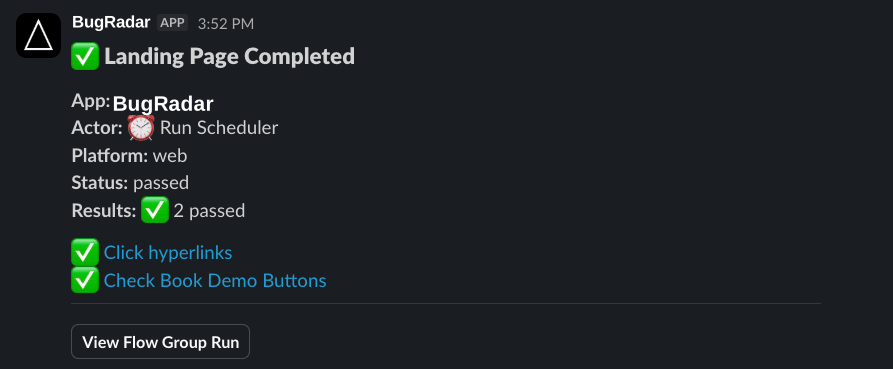
On the Slack settings page, three switches control what your channel gets:- One message per batch: instead of a message for each flow group, post one summary once everything a trigger started has finished. It lists each flow group with its result (passed, failed, error, terminated or skipped), worst first. Each failed or errored flow group gets a thread reply listing its flows, and a failed flow shows its top issue.
- Only notify on failures: post only when a flow fails.
- Send notifications for draft flows: also post runs of draft flows, which
are copies of your flows that aren’t merged yet: flows an agent creates or
runs from a branch or pull request through MCP, and flows the CLI uploads
with
BugRadar run --cloud. CI and scheduled runs aren’t affected. Off by default.
Issue notifications
After an unsuccessful run, the Slack message first shows that issue analysis is in progress. BugRadar updates the same message when grouping finishes, showing eligible issue groups in severity order. Messages omit dismissed groups and groups marked Don’t show again. If the message would exceed Slack’s block limit, use the included dashboard link to review the remaining issues in BugRadar. An issue with a current Jira or Linear ticket shows its external key and link. An eligible issue without a current ticket shows Create ticket.Link your BugRadar account
Slack must know which BugRadar member is approving a ticket. The first time you select Create ticket, follow Link BugRadar account, sign in to BugRadar, and confirm the link. The link is single-use, expires after ten minutes, and only works for an active member of the same BugRadar workspace as the Slack installation. If your BugRadar membership is removed or Slack is reinstalled, link your account again.Review a ticket in Slack
For a linked member, Create ticket opens a Slack review modal with the same provider, destination, issue type, title, and description choices available in the BugRadar dashboard. Submitting the modal acknowledges the request immediately and creates the ticket in the background. When creation succeeds, BugRadar updates the original Slack notification with the Jira or Linear key and link. If provider options are not available quickly, the modal directs you to the dashboard rather than waiting. Recoverable failures preserve a dashboard retry path. If the provider result is unknown, check Jira or Linear before retrying so you do not create a duplicate.Ticket creation always requires a person to review and submit the Slack modal.
The workspace’s automatic-provider setting is a separate issue-group workflow.